![branded_update_bb_logo_r_230728-2.png]](https://knowledge.benefitbay.com/hs-fs/hubfs/branded_update_bb_logo_r_230728-2.png?width=317&height=95&name=branded_update_bb_logo_r_230728-2.png)
Step 1: Open the model and locate Benchmark Plans
Open the model comparison screen for the model you want to work in.
The Benchmark Plans button appears on the right side of the comparison view and shows the active benchmark plan count for the model.
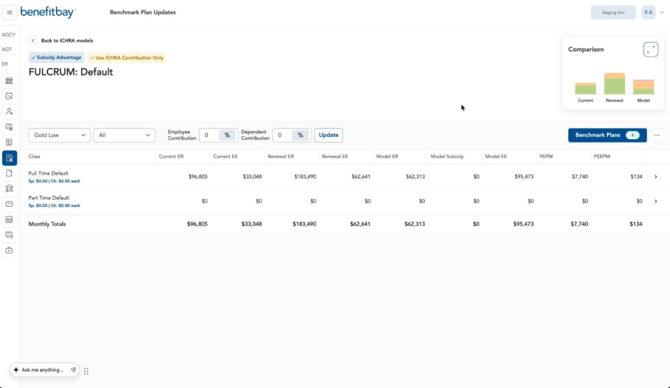
Model comparison view with Benchmark Plans button.
Step 2: Open the Benchmark Plans screen
Click the Benchmark Plans button to open the benchmark plan detail screen.
This view groups plans by state and shows priority order, HIOS ID, carrier/type of plan, plan name, and the employee count tied to each benchmark plan.
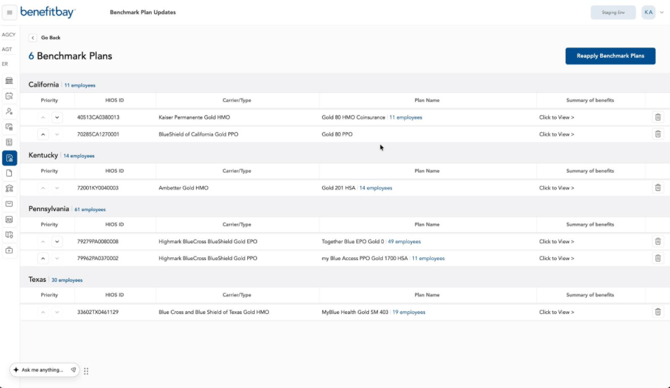
Benchmark plan detail screen by state.
Step 3: Review plan details and employee distribution
Use the benchmark plan screen to review which benchmark plans are assigned and how many employees are tied to each plan.
In the example below, one of the Pennsylvania benchmark plans is highlighted, making it easier to validate state-specific benchmark assignments.
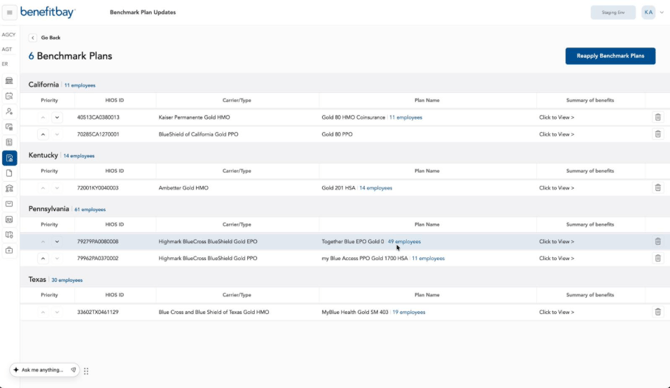
Reviewing benchmark assignments and employee counts.
Step 4: Reapply benchmark plans from the benchmark screen
Click the Reapply Benchmark Plans button to refresh benchmark assignments without leaving the benchmark workflow.
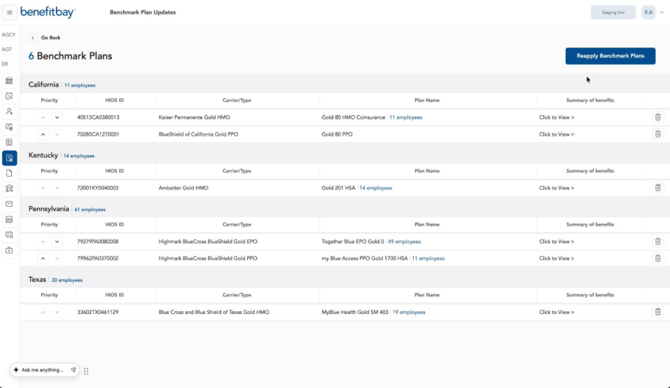
Reapply Benchmark Plans action.
Tip: Use this button to update the benchmark plans from the same place that you review the plans.
Step 5: Confirm benchmark status on the ICHRA model list
Click "Go Back" in order to return to the ICHRA Models list. Confirm that the model row shows the green Benchmark flag on the right side of the screen.
This view gives you a quick way to see which models are benchmark-enabled without needing to open each individual model.
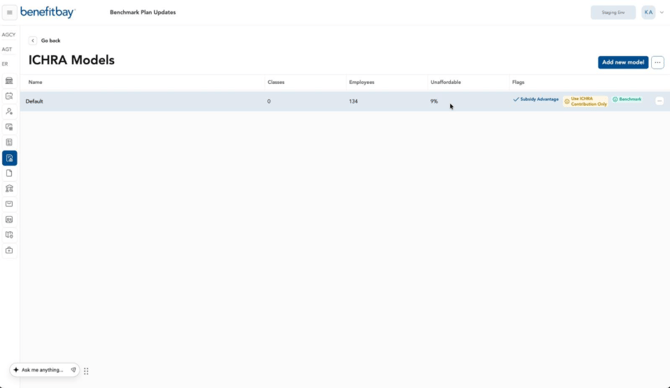
Benchmark flag visible on the model list.
Step 6: Include benchmark plans when copying models
You may want to duplicate a model in order to explore different changes. If the copied model should retain the existing benchmark setup, toggle the Copy [x] Benchmark Plans feature to Yes.
The copy screen shows the benchmark plan count.
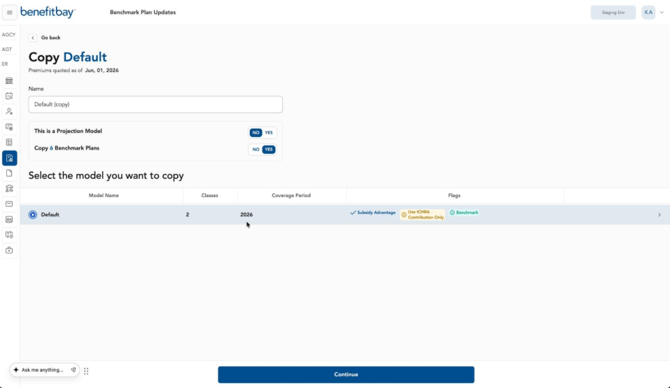
Copy model screen with Copy Benchmark Plans enabled.
Step 7: Validate the copied model after save
After the model is copied, open the new model to confirm that it retains the expected settings.
In this example, the copied model shows the same Use ICHRA Contribution Only setting and displays a "Values updating" status on the right side of the screen while the copied model recalculates.
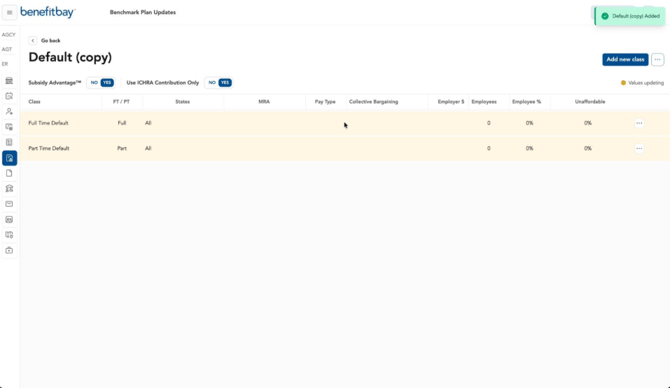
Copied model created and recalculating.
Troubleshooting notes
-
Does the benchmark plan list look incorrect? Confirm that you opened Benchmark Plans from the correct model before validating the state and plan assignments.
-
What if the copied model does not show the correct benchmark plans? Return to the copy screen and confirm Copy Benchmark Plans is set to Yes before saving the new model.
-
Is the model list is missing the Benchmark flag? Refresh the model list after saving and verify you are reviewing the correct model row.