![branded_update_bb_logo_r_230728-2.png]](https://knowledge.benefitbay.com/hs-fs/hubfs/branded_update_bb_logo_r_230728-2.png?width=317&height=95&name=branded_update_bb_logo_r_230728-2.png)
Setting Dependent Contribution Amounts
Dependent contribution amounts should be part of the conversation when you are building out contribution models for a group. A good starting point is to review what the employer currently offers dependents under their group health policy. From there, you can adjust dependent contribution amounts based on the client’s budget and goals until you find a strategy that works well for both the employer and employees.
There are two primary ways to configure dependent contributions in the platform, and the approach may vary depending on the number of classes you are creating and the type of contribution strategy you want to apply. In the system, you will see options for Traditional and Custom contribution types. Additionally, there are different methods for applying dependent contributions based on how many classes are included in the model.
The sections below walk through these options in detail.
Custom Contributions
The custom contribution option allows your clients to offer specific amounts for an employees dependents and cap the total dollar amount offered (if desired).
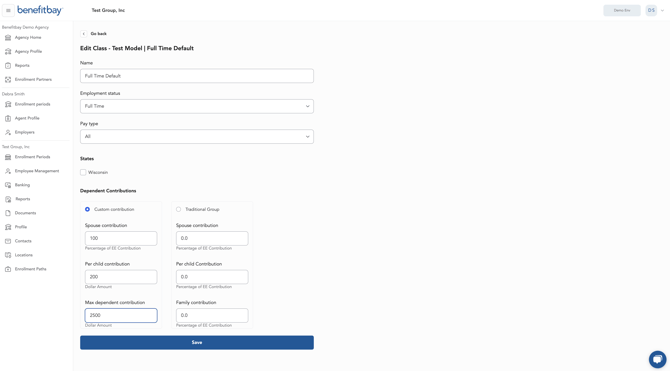
For example, if an employee was being offered $500 for themselves, 100% for the spouse, $200 per child, and $2,500 Max dependent contribution it would be as followed.
Employee Only - $500
Employee + Spouse -$1,000
Employee + Child - $700
Employe + Spouse + Child + Child + Child -$1,800
Because there is a $2,500 max, if an employee had 7 children, the total family contribution offered would be $2,500. If an employer wanted to have no limit to the amount offered to an employee + family, you would put 0 in the 'Max dependent contribution' box.
Traditional Group Contribution
The Traditional Group option allows you to add percentages for the dependent contribution amounts rather than a dollar amount. Since ICHRA contributions for employees are often different depending on their ages, this option allows for an employee dependent contribution to adjust as they age.
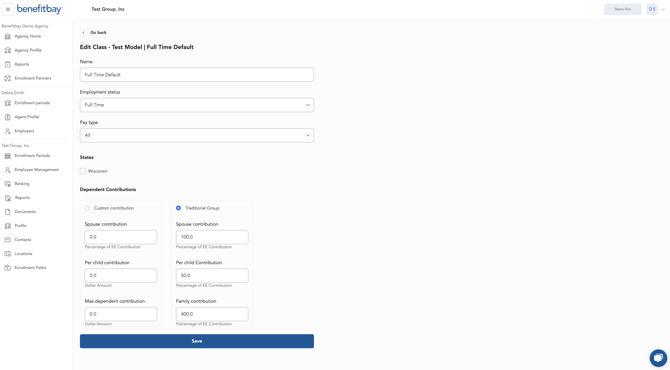
For example, lets say an employer offers 100% for spouse, 50% per child, and 400% as the family contribution limit. If you have an employee with a spouse and two kids, who is age 39 and about to turn 40 and move into a new age class, it would be as followed.
39 year old employee being offered $500 for themselves:
Employee ($500) + Spouse ($500) + Child ($250) + Child ($250) = Total contribution of $1,500
Once the employee turns 40, their employer contribution strategy now says they'd be offered $550 for themselves:
Employe ($550) + Spouse ($550) + Child ($275) + Child ($275) = Total contribution of $1,650
The percentage you put in the 'Family contribution' box is the maximum contribution that would be offered to an entire family. If you set it at 400% that means the contribution limit would be 5X the amount offered to the employee
How to Edit the Dependent Contribution Limits
You will begin this process in the model you are wanting to edit. You can set different contribution amounts for each class of employees.
Single Class Adjustments:
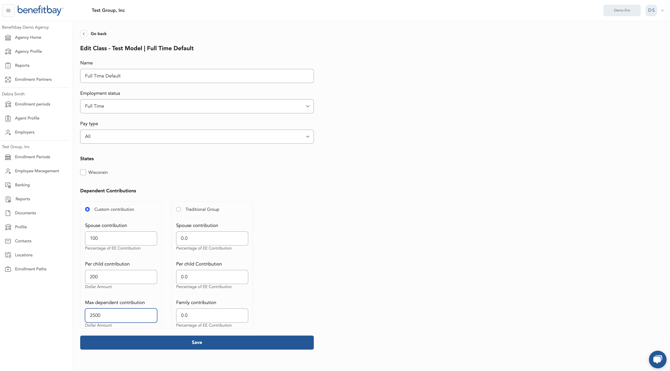
To edit one class, you will click the three dots to the right of the class you're wanting to edit and select the 'Edit' option.
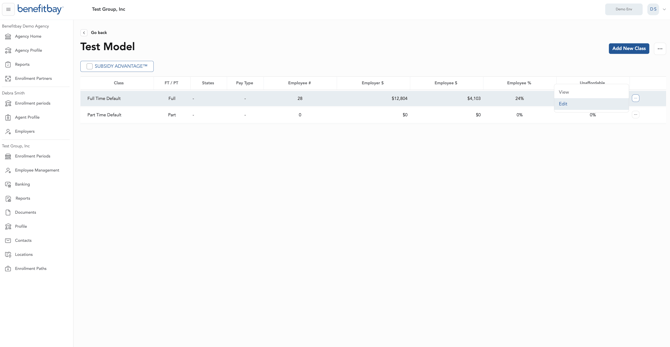
You will then be able to add or edit the dependent contribution amounts. When it comes to setting these limits you can choose between either a 'Custom contribution' or 'Traditional Group'. With the Custom contribution option you are able to select a dollar amount per child and a Max dependent contribution dollar amount. The Traditional Group option allows you to include percentages for each category. Once you have added the contribution amounts, click the blue 'Save' button at the bottom of the page.
Multiple Classes Adjustments:
If your group has multiple classes, the easiest way to add, edit, and validate dependent contributions is within the model itself.
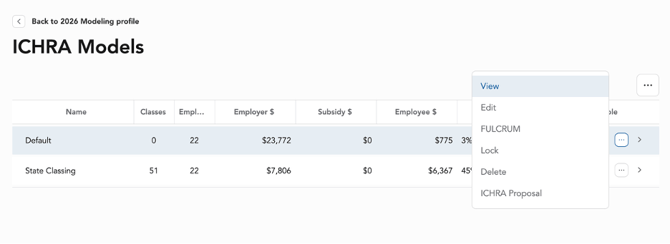
Open the intended model and select View.
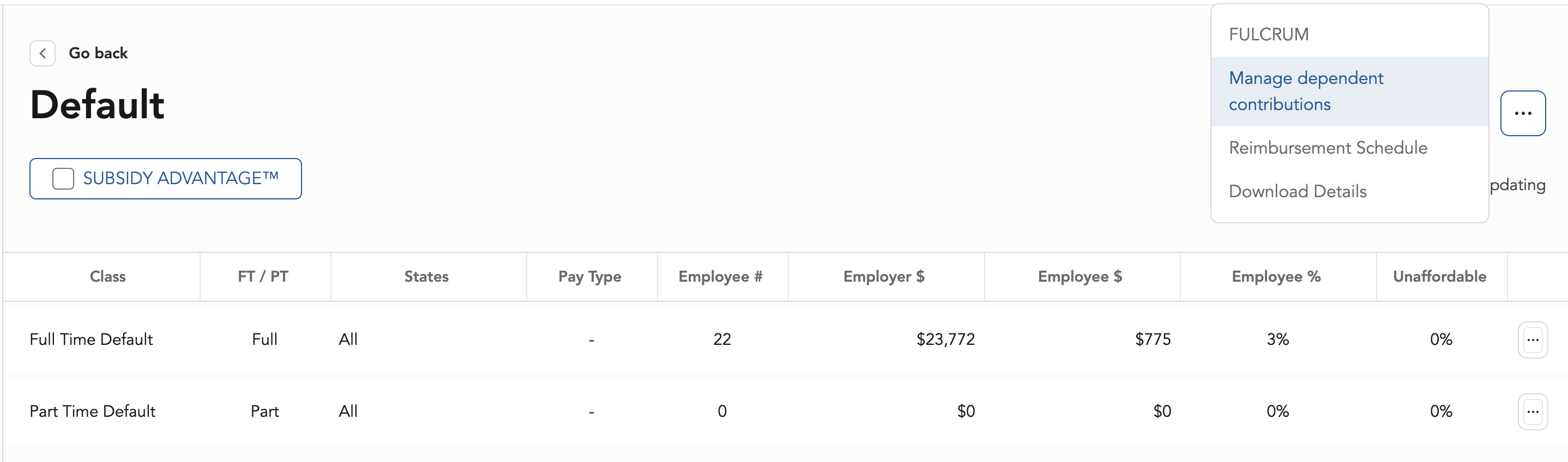
Once inside the model, go to the toggle in the top right corner and select “Manage Dependent Contributions.”
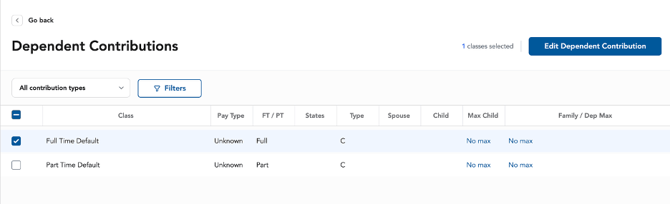
A new screen will appear showing each class, along with the current contribution type and amounts. If no dependent contributions have been set up yet, you can add them by selecting one or multiple classes and clicking “Edit Dependent Contribution.”
Note: You can only update one contribution type at a time. Contribution types are:
C = Custom
T = Traditional
A pop-up will appear where you can make updates. The first option allows you to toggle between Custom and Traditional contribution types.
When it comes to setting these limits you can choose between either a 'Custom contribution' or 'Traditional Group'. With the Custom contribution option you are able to select a dollar amount per child and a Max dependent contribution dollar amount. The Traditional Group option allows you to include percentages for each category. Once you have added the contribution amounts, click the blue 'Save' button at the bottom of the page.
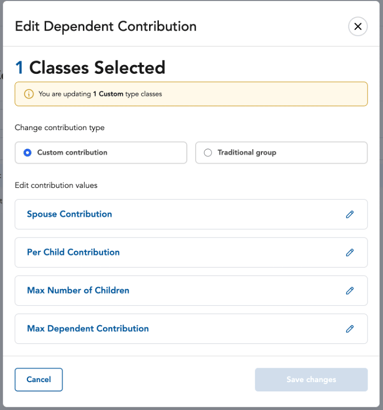
Click the pencil icon on the right to add or edit contribution levels.
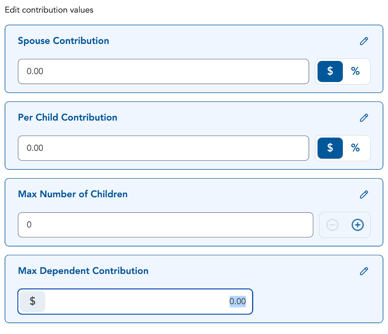
You can set contributions as either a fixed dollar amount or a percentage. Use the blue toggle to select your preferred method, then enter the value.
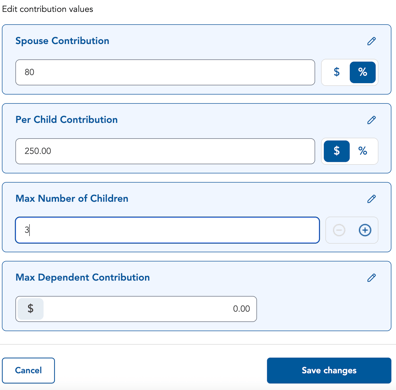
When finished, click Save. You will be returned to the previous screen where you can review the updated information. This is also a good time to confirm that all intended classes have dependent contributions configured.
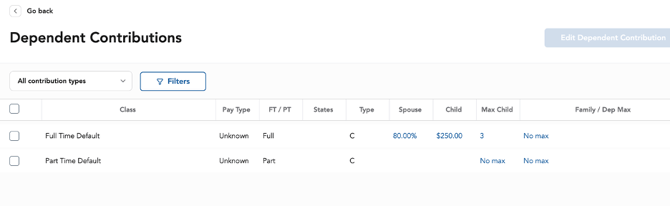
(employee is offered $500 + 400% = $2,500).
How to View the Reimbursement Schedule
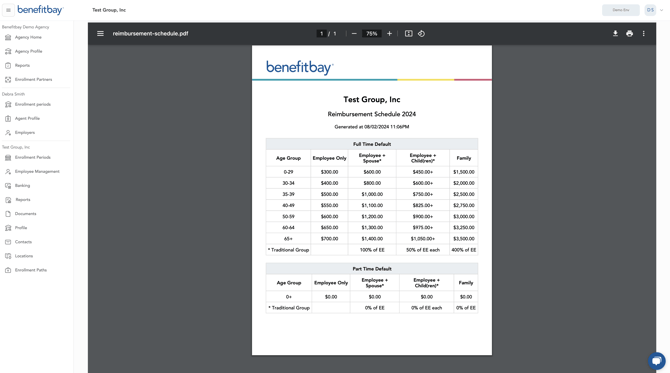
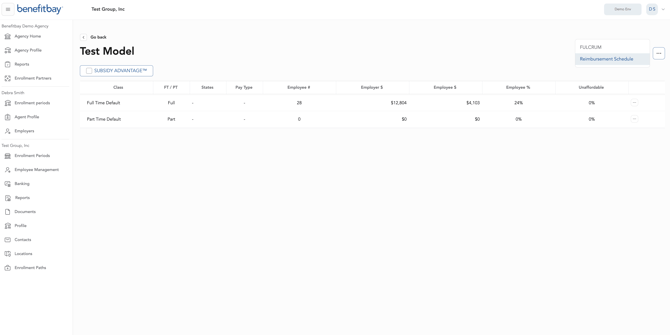
If at any point you're wanting to see how the dependent contribution you've defined would affect each age class of employees, you can always view the model's Reimbursement Schedule. You can find the reimbursement schedule when you're in the model by clicking the three dots to the right of the blue 'Add New Class' button. You will select the 'Reimbursement Schedule' from that expanded menu.
You can then view the real dollar amounts that would be offered to employees who had added dependents. Viewing the reimbursement schedule is a great way to make sure the amounts you're adding and providing the results you're looking for.