![branded_update_bb_logo_r_230728-2.png]](https://knowledge.benefitbay.com/hs-fs/hubfs/branded_update_bb_logo_r_230728-2.png?width=317&height=95&name=branded_update_bb_logo_r_230728-2.png)
Lock the ICHRA Model
Log into benefitbay and navigate to the client's Setup tab. Select the enrollment and coverage dates, add a census, and add a primary address for the client.
Then, click the blue "Define Contributions" button.

Locate the model the client has confirmed and approved.
Click the three-dot menu located on the right side of the approved model. Select the "Lock" option.
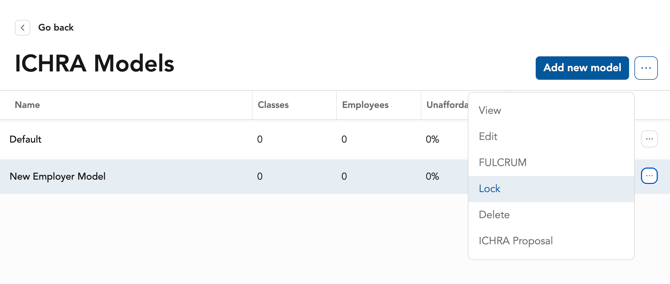
You cannot unlock or edit a model after locking it. Do not lock the model until client approval is given.
If you mistakenly locked the wrong model, or must make an edit, reach out to your primary benefitbay contact immediately.
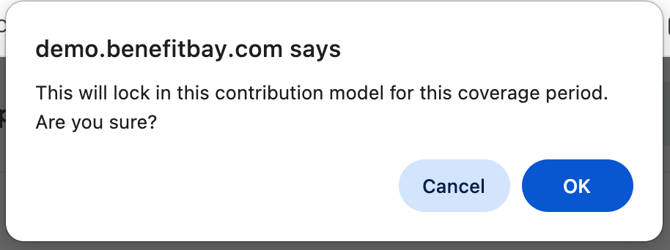
A pop-up will ask you to confirm the model. Click "Ok".
After locking the model, you will be taken to the Setup tab. The "Model ICHRA Contribution Plan" step will be marked completed with a green checkmark.

Congratulations! The model has been locked!