![branded_update_bb_logo_r_230728-2.png]](https://knowledge.benefitbay.com/hs-fs/hubfs/branded_update_bb_logo_r_230728-2.png?width=317&height=95&name=branded_update_bb_logo_r_230728-2.png)
Step 1: Start a new contribution model
After logging into benefitbay, open the desired employer group. From the left navigation bar, click into the Reports tab. You will see the ICHRA Plan Setup card. Click "View Model." This will bring you to the ICHRA Models screen.
From the ICHRA Models screen, click the Add New Model button. This will open the new model workflow and enter the class builder.
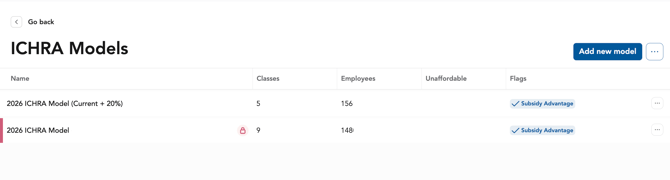
Starting a new contribution model from the ICHRA Models screen.
Step 2: Enter the model details and open Build Class Structure
Choose a name for the new model. Click the toggle next to "Auto-class builder for complex models," and click the blue Continue button on the bottom of the screen.
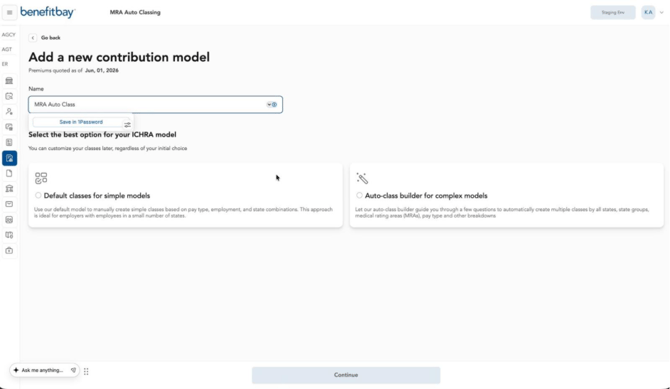
The model workflow leading into Build Class Structure.
Step 3: Set up the state classes
The Individual State classes screen appears first in the class builder. The screen will display all states with an employee population.
In this example, the "All States" checkbox is selected, which will create an individual class for each listed state.
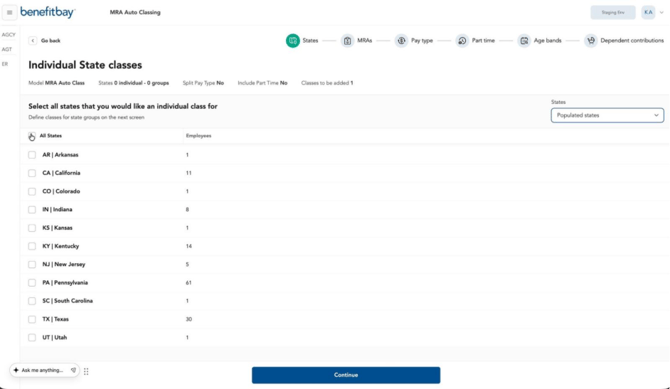
Individual State classes
Step 4: Review state group classes and continue
Next, you will be able to group states together. Select the checkboxes next to any states that you wish to group together, and then click the Add group button on the right. You can complete this step multiple times, to create multiple groups of states. The system will save these groups before moving to the next stage.
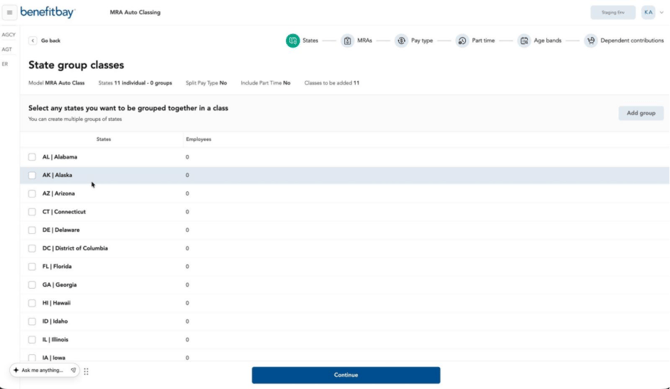
Create state group classes.
Step 5: Separate classes by MRA
Next, you'll see each individual populated MRA, with the employee population listed in a column to the right. You can use the drop-down menus on the upper right to filter your selection.
Select the MRAs for which you would like to create separate, individual classes, and click the blue Continue button at the bottom of the screen.
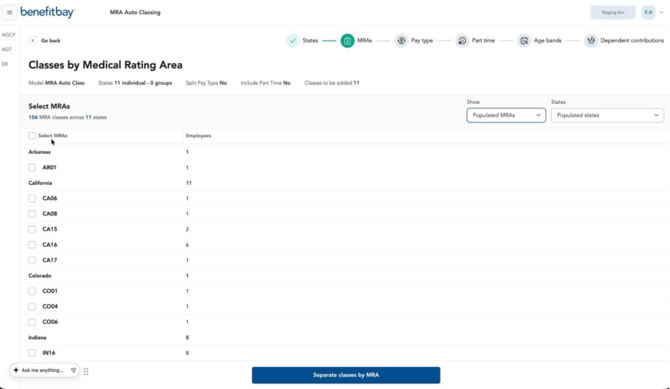
Select MRAs to separate into classes.
Step 6: Choose whether to create pay type classes
Next, decide if you will separate the classes by pay type.
Select the Not Now button, or the Yes, separate by pay type button to continue.
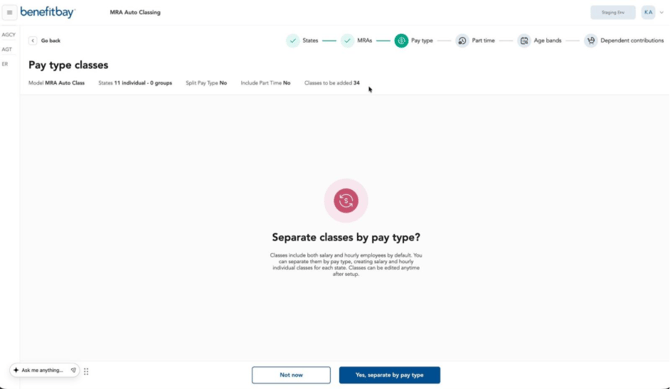
Separate classes by pay type.
Step 7: Complete the remaining builder steps
Select the age banding you want for you classes and click the blue Continue button. Next, select dependent contributions.
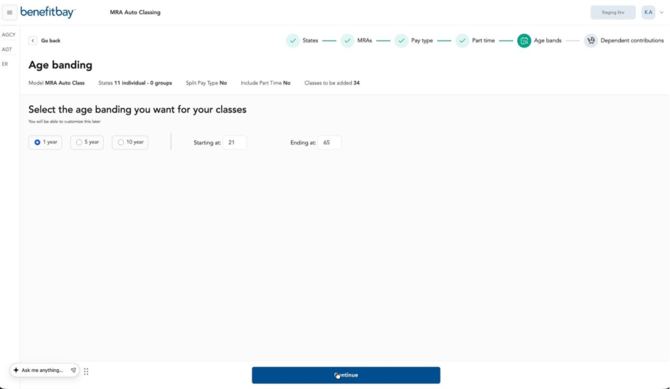
Selecting age bands for your model.
Step 8: Review the summary and create the model
At the end of the workflow, you will see a final review screen that summarizes the classes setup. To edit, click the pencil icon to the right of the class type.
To finish and save the model, click the Create [x] classes button.
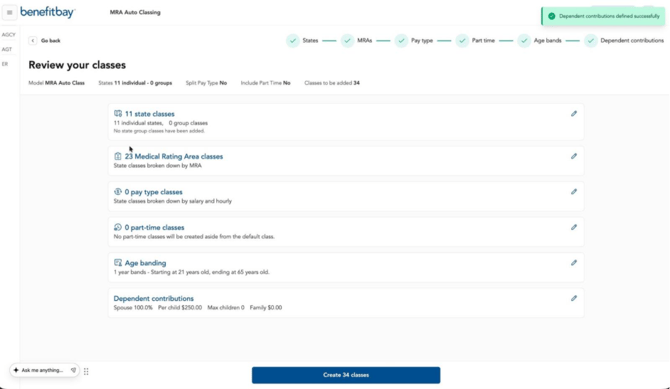
Review and Create Model step.
Step 9: Validate the created model and class structure
The final screen will display the new model's multiple classes. This view is confirmation that the workflow generated the desired model.
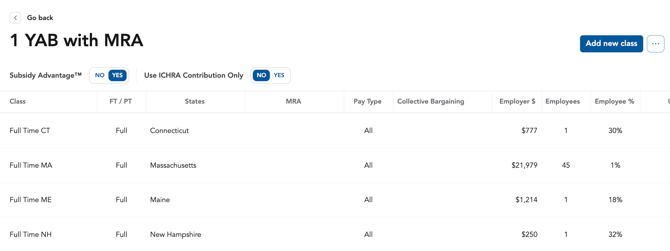
Final model view with auto-created classes visible.
Troubleshooting notes
-
Not seeing the MRA options you expect? Return to the MRAs step and review the visible MRA and state filters before separating classes.
-
The model does not reflect the class structure from the walkthrough: Open the review screen before creation and confirm the guided steps were completed in sequence.
-
Do you want to confirm that the workflow finished correctly? Use the final model view as the validation point and look for the created class rows shown after the model is built.