![branded_update_bb_logo_r_230728-2.png]](https://knowledge.benefitbay.com/hs-fs/hubfs/branded_update_bb_logo_r_230728-2.png?width=317&height=95&name=branded_update_bb_logo_r_230728-2.png)
In this article
- What each of the four flags means and where they appear
- How to open the model menu and reach Model Preferences and Model Notes
- What each of the three preferences does to the numbers
- How to change a preference and how to confirm it applied
Flags appear in the Flags column on the ICHRA Models list and again at the top of an individual model once you open it. Hover over any flag to read a short note describing what it does.

ICHRA Models list. The Flags column shows which settings are active on each model, and the Notes column shows how many model notes have been added.
|
Flag |
Setting it represents |
Effect in plain terms |
|
SA |
Subsidy Advantage |
Subsidy is factored into the modeled cost |
|
ICHRA Only |
Use ICHRA Contribution Only |
Subsidy is ignored, showing the employer's maximum exposure |
|
MC Cost |
Medicare Age Cost Adjustment |
Members age 65 and over are capped at a flat $700 |
|
Benchmark |
A benchmark plan is set on the model |
The model is priced against a specific plan |
In the example above, the Default model carries only MC Cost, while MRA Classing carries SA, Benchmark, and MC Cost. Those three extra settings are enough to explain a meaningful difference in modeled cost between the two.
|
Tip: When an employer questions a number, compare flags between models before you compare anything else. It resolves most discrepancies without escalating. |
Opening the Model Menu
Use the "..." control to the right of the model. It opens the model options, including Model Preferences and Model Notes.
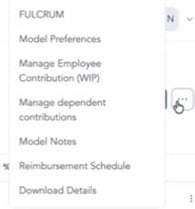
Model options menu.
Along with Preferences and Notes, this menu is also where you reach Manage Employee Contribution, Manage dependent contributions, Reimbursement Schedule, and Download Details.
Model Notes
Model Notes gives each model a place to hold its own context. Rather than tracking assumptions in an email thread or a side spreadsheet, you can record directly on the model why a particular tier was chosen, what the employer asked for, or what still needs confirming. The note count for each model displays in the Notes column on the ICHRA Models list, so it is easy to see which models have context attached and which do not.
Flags on the model view pageOnce you open a model, the flags move to the top of the page beside the model name. They behave the same way here, so you can hover to read the note without going back to the list.
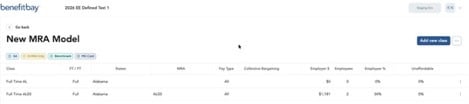
Model view page showing SA, ICHRA Only, Benchmark, and MC Cost.
|
Note On a model you have just created, expect the flags to fill in as processing completes. While the model still reads "Values updating," fewer flags display. A missing flag on a brand new model is not a setting that failed to save. |
The Model Preferences Drawer
Model Preferences opens as a drawer on the top right of the page. It holds three toggles, each set to NO or YES, with a question mark icon beside the label that explains the setting.
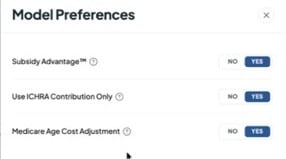
Model Preferences drawer with all three settings turned on.
To Change A Preference
- Open the model and click the "..." control.
- Select Model Preferences.
- Set each toggle to NO or YES.
- Click Save changes. Nothing is applied until you do.
- Confirm the flags at the top of the model now match what you saved.
Subsidy Advantage
Subsidy Advantage appears in the drawer as "Subsidy Advantage™" and is represented by the SA flag. When it is on, subsidy is factored into the modeled cost.
When it is off and a contribution is deemed unaffordable, the subsidy amount does not disappear. It surfaces separately in the Model Subsidy column on the Classes view, so you can still see what the employee would qualify for without it being blended into the modeled cost.
Use ICHRA Contribution Only

Hovering the ICHRA Only flag displays the setting note.
When this setting is on, the model projects cost using only the employer's ICHRA contribution and ignores any subsidy an employee might qualify for. Its stated purpose is to show the employer's maximum projected cost in the case where a contribution is deemed unaffordable.
Think of this as the conservative view. Reach for it when an employer needs to understand the ceiling on their spend rather than the most likely outcome. Reach for Subsidy Advantage instead when they want the realistic projection.
Medicare Age Cost Adjustment

Hovering the MC Cost flag displays the setting note.
When this setting is on, members age 65 and over are mapped to a flat premium of $700 for 2026 Medicare costs instead of a standard 64 year old premium. In practice it caps the employee-only (EEO) amount at $700 for those members.
Without the adjustment, those same members price at the highest ACA age band. On a group with an older population, that difference is large enough to change the entire recommendation, so confirm this setting before presenting cost to an employer with Medicare-eligible employees.
To Confirm The Cap Applied
- Open the model and click the "..." control.
- Select Download Details.
- Open the export and locate an employee age 65 or over.
- Check the Plan and Premium columns.

Download Details export. For these two members age 66, the Plan column reads Medicare and Premium reads 700.
This is the fastest answer to an employer asking why one older employee's cost looks different from everyone else in their class.
Common QuestionsTwo models on the same group show different costs. Why?
Compare the flags first. Different combinations of Subsidy Advantage, Use ICHRA Contribution Only, and Medicare Age Cost Adjustment will produce different results from identical class setups.
Do preferences carry over when I build a new model?
No. Preferences are set per model, not per employer. Any new model needs all three toggles reviewed, even if it is based on the same group.
I saved a preference but the numbers look unchanged.
Confirm the flag now appears at the top of the model. If the model is still processing, values and flags populate as it finishes. Also re-check the affordability and unaffordable percentages in the class grid, since those move with these settings.
Which setting should I use for a client presentation?
Match the setting to the question being asked. Subsidy Advantage for the realistic projection, Use ICHRA Contribution Only for the worst case. Whichever you use, confirm the flags on the model match the assumptions you described.