![BBay Icon Grdnt-2.png]](https://knowledge.benefitbay.com/hs-fs/hubfs/BBay%20Icon%20Grdnt-2.png?width=40&height=40&name=BBay%20Icon%20Grdnt-2.png)
Deals Pipeline:
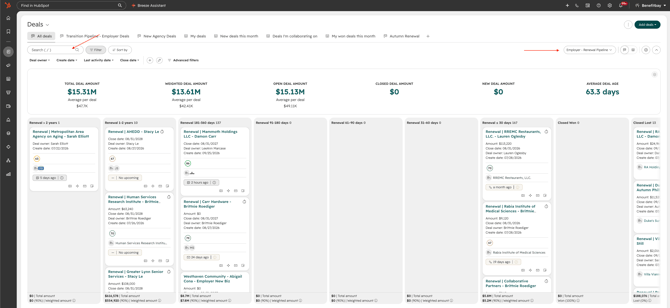
You will start on the 'Employer - Renewal Pipeline' and search for the group who is churning. Once you locate the Deal, you will click the name to open the Deal.
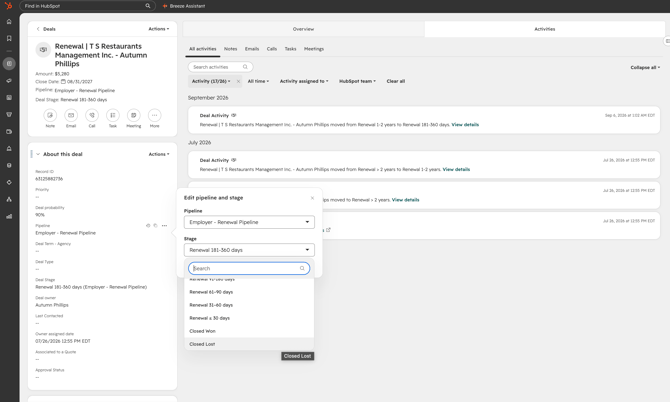
Once the Renewal Deal is open, you will select the 'Pipeline' option and under 'Stage' you will change it to 'Closed Lost'. Making this selection will automatically create a ticket on the 'Churn' pipeline. Before we move to that pipeline you will have a few more items on the Renewal Deal to complete.
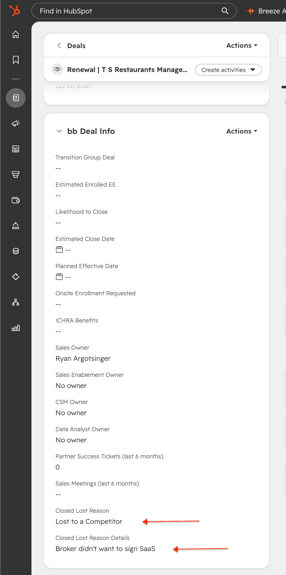
Under the section 'bb Deal info' of the Renewal Deal, you will select a 'Closed Lost Reason' from the drop down menu. If the associated reason isn't listed, you can select 'Other' and input the reason in the free text field under 'Closed Lost Reason Details'.
Churn Pipeline:
Now that a churn ticket exists for the group, you will go to the 'Churn Pipeline' under the 'Tickets' section for next steps. You should see your group as one of the top tickets under the 'CS' column. If you do not, you can always search the company name.
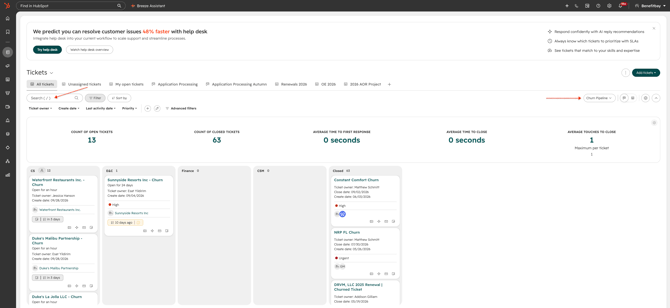
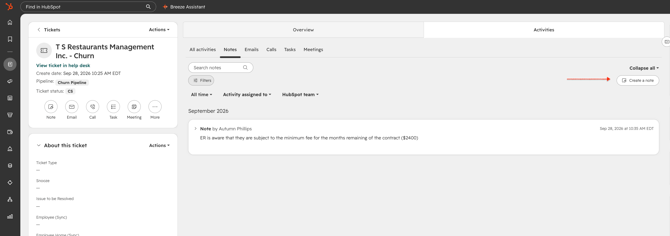
You will click on the churn ticket to open it up and begin filling out the necessary items. Under the first section titles 'About this ticket' you will scroll down to fill out: 'Churned?', 'Churn Reason', 'Churn Details' (if 'Other was selected) and 'Policy End Date'.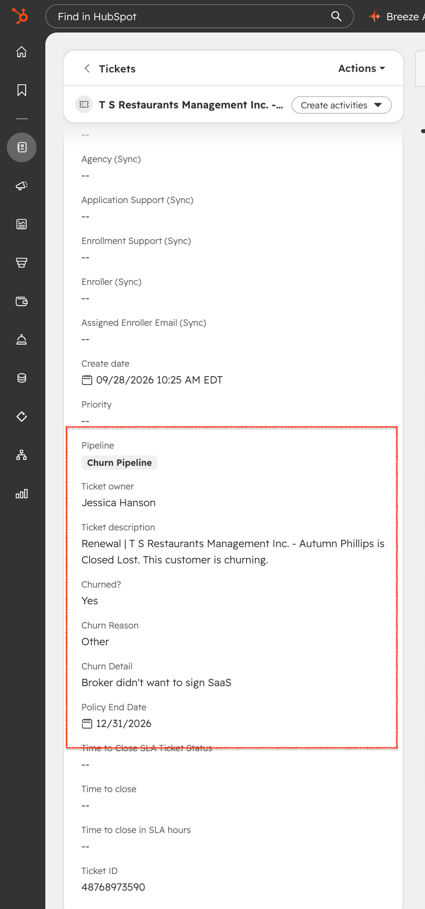
Leave any helpful information in a note on the ticket.