![BBay Icon Grdnt-2.png]](https://knowledge.benefitbay.com/hs-fs/hubfs/BBay%20Icon%20Grdnt-2.png?width=40&height=40&name=BBay%20Icon%20Grdnt-2.png)
Adding or removing an employer contact in OCA
To add or remove an employer contact in OCA, go to the OCA Change Form: https://oca125.com/erchangeform/
First Screen
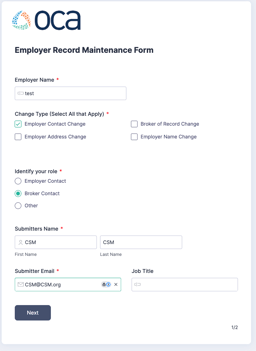
Enter the ER Company Name, and select Employer Contact Change.
You may also use this form to change the Employer Address and Employer Name, if necessary.
Select Broker Contact.
Enter your personal first and last name and email.
Click Next.
Click Next.
Second Screen
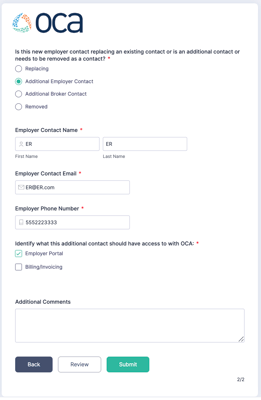 Select Replacing, Additional Employer Contact, or Removed depending on the reason you are filling the form.
Enter the Employer Contact Name, Email, and Phone Number.
Click Employer Portal.
Do not add Additional Comments.
Click Submit.
Adding a COBRA event to OCA
Locate the employer group, and click View [Employer's Name].
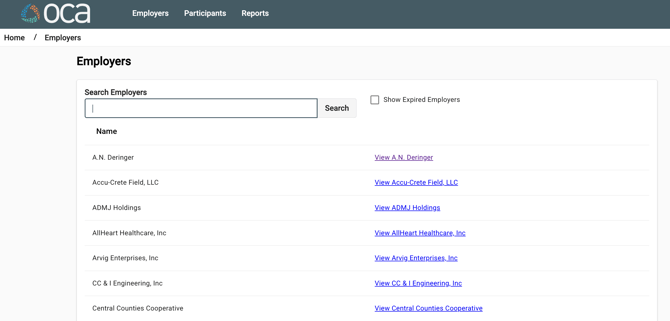
On the left navigation tab, click the Launch Employer Portal button (see image—the button is a square with an arrow through it) next to the ER's name.
Within the Employer Portal, go to the Dashboard, and select Add COBRA Event.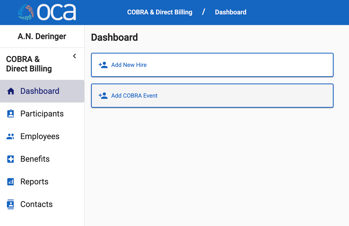
Fill out the pop-up form with the appropriate answers.
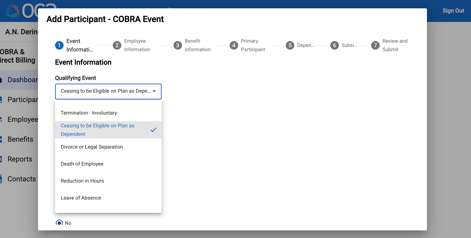
1. Event Information
-
Qualifying Event: Choose the appropriate response.
-
Qualifying Event Date: Date of coverage or eligibility end
-
Is this a second Qualifying Event: No
-
Disability Extension: No
-
Has this Qualifying Event been tracked in another system: No
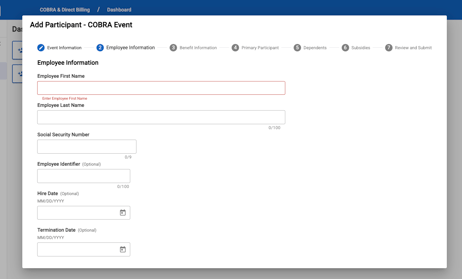
2. Employee Information
-
Employee First Name: Enter EE's first name
- Employee Last Name: Enter EE's last name
- Social Security Number: Enter EE's SSN
- Employee Identifier: Leave blank
- Hire Date: Leave blank
- Termination Date: Leave blank
- Rehire Date: Leave blank
- Retirement Date: Leave blank
- Primary Email: Leave blank
- Secondary Email: Leave blank
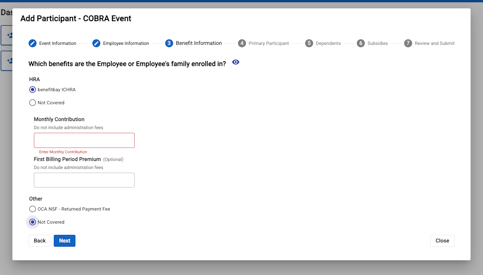
3. Benefit Information
-
HRA: benefitbay ICHRA
- Monthly Contribution: Enter the EE's monthly contribution (find in the EE's benefitbay Enrollment tab)
- First Billing Period Premium: Leave blank
- Other: Not Covered
4. Primary Participant
-
Who is the Primary Participant: Choose the dependent that is losing coverage
-
Primary Participant's Address: Enter the dependent's address
- Primary Phone Number: Leave blank
- Secondary Phone Number: Leave blank
- Email: Leave blank
- Gender: Choose the dependent's gender. Only use Male or Female.
- Is Tobacco User: Unknown
- Date of Birth: Enter the dependent's DOB.
- Disability Start Date (Optional): Leave blank
- Medicare Start Date: Leave blank
- Medicare End Date: Leave blank
-
Which benefits is this person enrolled in?: benefitbay ICHRA
5. Dependents
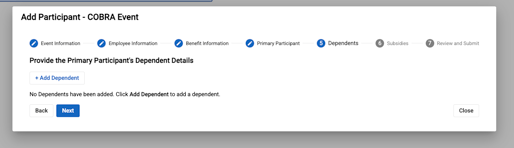
Leave blank and click "Next."
6. Subsidies
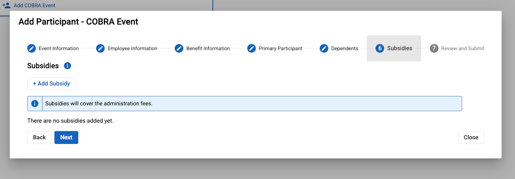
Leave blank and click "Next."
7. Review and Submit
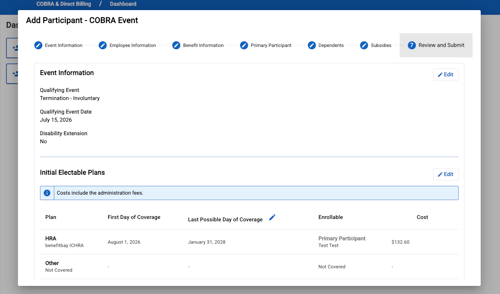
Review information and click "Submit Participant."