![BBay Icon Grdnt-2.png]](https://knowledge.benefitbay.com/hs-fs/hubfs/BBay%20Icon%20Grdnt-2.png?width=40&height=40&name=BBay%20Icon%20Grdnt-2.png)
Log into OCA
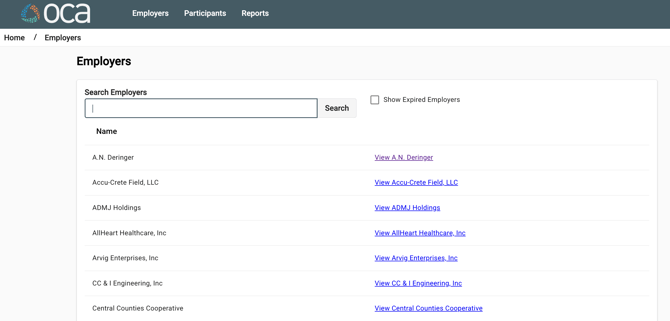
On the left navigation tab, click the Launch Employer Portal button (see image - the button is a square with an arrow through it) next to the ER's name.
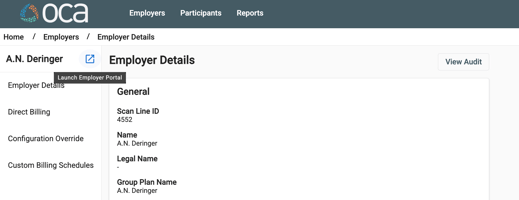
The Employer Portal looks like this:
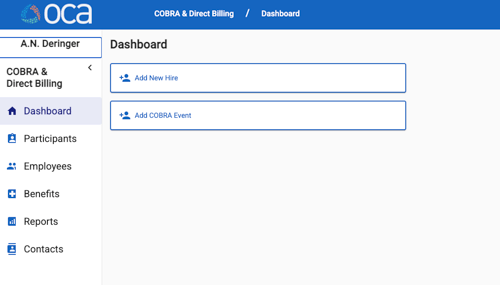
Look up an employee record; view sent letters
Click the Participants tab on the left navigation bar. Enter the employee's name into the search fields, and click search (or hit enter).
The employee should appear below the search fields.
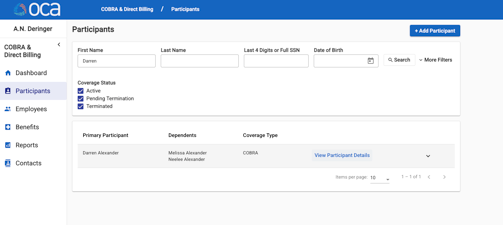
Click "View Participant Details." This will bring you to the employee's section of the OCA portal.
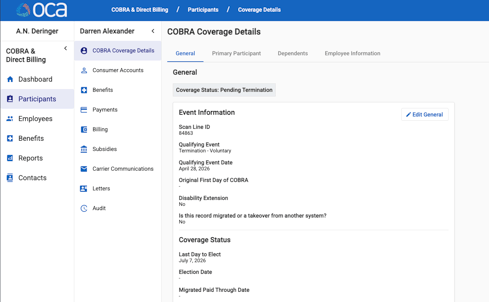
To view any completed COBRA mailings, click the Letters tab on the employee's navigation bar
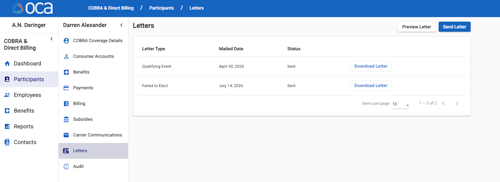
The Letters tab will display any mailed or to-be-mailed notices that have been mailed to the employee. Click "Download Letter" to download a PDF copy of the notice.
Employer Reports
To access employer reports in OCA, access the Employer Portal (see instructions above). Then, click the Reports tab in the left navigation bar.
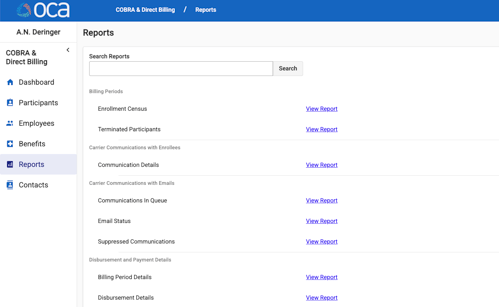
The most commonly requested report is the Letters Sent Report. This report details the mailings sent by OCA on behalf of the client. Use the search bar at the top of the page, or scroll down.
Click "View Report."
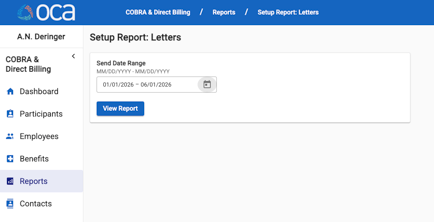
Send Date Range: Enter the desired date range. Click "View Report."
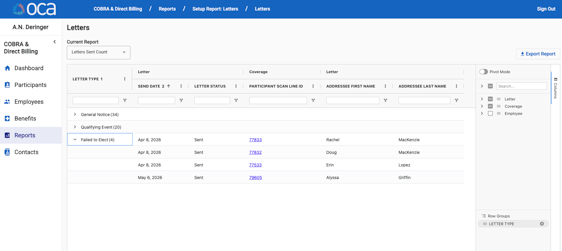
You can click "Export Report"button on the top right of the screen to export the data into a CSV or XLSX file.
You can also click on the letter category (i.e. General Notice, Qualifying Event, Failed to Elect) to quickly look at the participants and send date. Clicking the Participant Scan Line ID link will open the employee's profile page in a new tab.