![BBay Icon Grdnt-2.png]](https://knowledge.benefitbay.com/hs-fs/hubfs/BBay%20Icon%20Grdnt-2.png?width=40&height=40&name=BBay%20Icon%20Grdnt-2.png)
QUICK REFERENCE — KEY ESCALATION OWNERS
Use the Hyperlinks to go to Issue Type
Before You Contact
Question Routing
Support Tickets & Inbound Issues
Reshop & Care Navigation
App Processing / Autopay (Manager: Brandon Lee)
QLEs (Manager: Brittany Kutcher)
Transactions / Missing Payments (Manager: Jessica Hanson)
Escalation Tickets/Access to Care (Manager: Bethany Carter)
Medicare / Inbound / Care Navigation (Managers: Laura Corvo / Amy Nordquist / Molly Brown)
Escalation Ticket Types
Determing Urgency
Ticket Creation Guide
Support Team Org Chart
BEFORE YOU CONTACT
|
🔍 Search HubSpot |
Look up the contact in HubSpot and scan all notes, emails, open tickets first. Also check for a second contact profile when employee may reach out from a different email address than what is in benefitbay. |
|
📋 Check open items |
Is there already an open ticket or change request for this issue? Who owns it? Have I asked the ticket owner for a status update? |
|
📊 Pull BB transaction history |
For any transaction, mapping, or missing payment question — research all transactions first. Is it missing, or just a mismatch? See – Missing or Mismatch? / Viewing Banking History an Employee |
|
⚠ Escalate |
⚠ If an escalation ticket is needed, please see HubSpot Best Practices
⚠ If a CSM is sent an email thread from an employer with an issue you aren’t sure how to tackle, or if you have a smaller issue that you don’t believe needs to be a ticket:
Forward or Compose Email to: support@benefitbay.com
|
Question Routing
OPEN SUPPORT TICKETS & INBOUND ISSUES
|
Open Support Ticket |
||
|
STEP 1: Check First |
STEP 2: Action |
STEP 3: Tag / Notify |
|
Look up the open support ticket |
Review ticket details and notes |
Tag ticket owner in a note Urgent? Tag manager (Laura, Amy, Molly) |
|
|
||
|
Inbound Support Issue (Inbound missed calls / no action taken) |
||
|
STEP 1: Check First |
STEP 2: Action |
STEP 3: Tag / Notify |
|
Search for an existing open ticket |
No open ticket? Go to HubSpot contact and create a note |
Tag ticket owner in a note Urgent? Tag manager (Laura, Amy, Molly) |
RESHOP & CARE NAVIGATION
Reshop Request / Enrollment Meeting Question |
||
|
STEP 1: Check First |
STEP 2: Action |
STEP 3: Tag / Notify |
|
Search for an existing open ticket |
No ticket? Create a 'Reshop Request' escalation ticket For: enrollment meeting/benefitbay platform errors, complex care NOT for: buyer's remorse or expense concerns |
Ticket will auto assign to manager for review (Laura, Amy, Molly) |
Care Navigation Question – Coverage is active, having provider/Rx network issue |
||
|
STEP 1: Check First |
STEP 2: Action |
STEP 3: Tag / Notify |
|
Look for open support or escalation tickets. This is reserved for coverage that is still active. |
Create HubSpot escalation ticket |
Ticket type: 'Care Navigation', 'Claims Denial/Appeals' or ‘Claims/EOB Questions’ Urgent? Tag manager (Laura, Amy, Molly) |
APPLICATIONS, PAYMENTS, & TRANSACTIONS
|
Existing Escalation Tickets / Urgent Requests (Reinstatements/Access to Care) |
||
|
STEP 1: Check First |
STEP 2: Action |
STEP 3: Tag / Notify |
|
Research ALL transaction history, HS notes/emails, change requests, open escalation and support tickets |
Review everything before acting. If the existing ticket is not progressing, tag the manager and owner for an update. |
If open escalation ticket: tag owner, Tag manager (Bethany Carter)
No escalation ticket: Create new ticket using applicable properties. Ex: ‘access to care’ or ‘reinstatement’
|
Qualifying Life Events (QLE) & Special Enrollment Periods (SEP)
Ticket Guide – Escalation Ticket Types
Selecting the wrong type — especially mislabeling a Medicare issue, or stuffing a complex problem into Missing Premium — causes round-robin misrouting and slows resolution. Some types are generated automatically by the platform and should never be selected manually.
Below you will have descriptions of each ticket type. Please review the 'When to Use' column to determine the appropriate ticket type.
|
Escalation Type |
Source |
When to Use |
|
Mismatch |
Platform-generated |
Do NOT manually select. Opens automatically from platform activity and closes in the platform. |
|
Dual Enrollment |
Platform-generated |
Do NOT manually select. Generated by the platform when duplicate coverage is detected. |
|
Unexpected Credit |
Platform-generated |
Do NOT manually select. Generated by the platform. |
|
Medicare Mismatch |
Platform-generated |
Do NOT manually select. Starts and closes in the platform. |
|
Missing Premium |
Manual |
Use ONLY when a premium is truly missing and just needs a one-time payment. Round-robins to Tier 1 — mislabeling complex issues here misroutes them. For complex situations, use Other. |
|
AutoPay |
Manual |
Auto-pay set-up requests. Note: auto-pay may not pull until later, depending on the carrier — check before escalating. |
|
Medicare Missing Premium |
Manual |
Paused — see Section 9. Document in the shared audit spreadsheet rather than creating an escalation. |
|
Medicare Auto Pay |
Manual |
Manual creation for Medicare auto-pay set-up issues. Do NOT use unless a Medicare SME confirms this is the correct type. |
|
Reinstatement |
Manual (usually) |
Typically manual; can come from the platform in some cases. |
|
Coverage Change Request |
Manual |
Use ONLY when escalating an existing coverage change request issue. Do NOT use this type to initiate a CCR — those must start in the platform. |
|
Access to Care |
Manual |
Member should have active coverage but is actively being denied care (doctor visit, prescription fill, etc.) due to a lapse in coverage or is at imminent risk of that. Always Urgent. |
|
Care Navigation |
Manual |
Provider is no longer in network, continuity-of-care requests, network exception requests, and similar provider-side navigation. |
|
Claims Denial / Appeal |
Manual |
Carrier has denied a claim. Help the member with the appeal process and document the path. |
|
Claims / EOB Question |
Manual |
Member has an EOB they do not understand (deductible questions, why a service wasn’t covered, etc.). Investigate against the SBC. |
|
Reshop Request |
Manual |
Employee believes they are entitled to re-shop due to extenuating circumstances and issue needs to be investigated. Will be reviewed by an EE Success Manager |
|
Other |
Manual |
Catch-all. Routes to the pod manager for reassignment. Use when an issue spans multiple categories or doesn’t fit cleanly — include a clear description so the manager can route correctly. |
Determining Urgency
|
Priority |
Follow-up Window |
When to Use |
|
Urgent |
Same day; follow up within 1–2 business days if no visible action |
Reserved for true access-to-care impact or financial exposure that cannot wait:
|
|
High |
Follow up after 3 business days if no visible action |
Important but not actively blocking care; should resolve within the week (e.g., auto-pay setup where a one-time payment already cleared, time-sensitive QLE prep before a deadline). |
|
Medium |
Follow up after 5 business days of inactivity — typically resolved in ~3 weeks |
Standard follow-ups, research items, and mismatches that don’t affect care. Most escalations live here:
|
HubSpot Best Practices – Escalation Ticket Creation
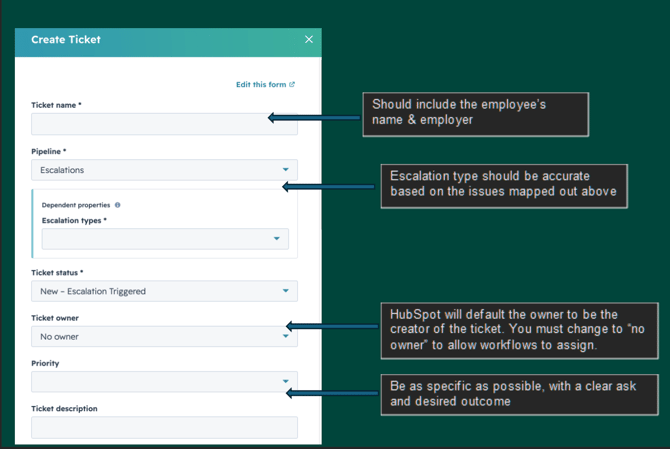
Team Org Chart
Director of Assurance Services - Addison Gilliam
Payments Manager: Jessica Hanson
- Esat Yildrim - Payments Coordinator
QLE Manager: Brittany Kutcher
- Karla Hipolito - QLE Coordinator
Applications Manager: Brandon Lee
- Dayna Campbell - Applications Coordinator
- Aidan Baltz - Applications Coordinator
- Bailey Miguel - Applications Coordinator
- Ke'Andra Reed - Applications Coordinator
Escalations Manager: Bethany Carter
- Stephanie Carey - Escalation Leads
- Jessica Esteb - Escalation Leads
Overflow Contrators:
- Hannah Johnson
- Heidi Hill
- Kimla Virden
- Martin Zaragoza
- Taylor Elliott
Director of Employee Success: Jessica Deines
Employee Success Manager: Molly Brown
-
Lisa Turner
- Va'Necia Gethers
- Heather Huesman
- Kala Hutchinson
- William Roark
- Kiandra Conner
Employee Success Manager: Amy Nordquist
-
Lauren Jackson
-
Sara Brite
-
Katherine Correa
-
Iesiaah Ward
-
Heather Ledford
-
Madison Schmitt (Overflow Contractor)
Employee Success Manager: Laura Corvo
-
Mikayla Wheeler
- Dylan Smith
- Gloria Guevara
- Shirley Adams
Follow-Up Cadence & Resolution Targets
Before following up on a ticket, check both the ticket and the employee’s HubSpot profile for notes — notes sometimes auto-associate to the agent contact instead of the employee, so a ticket that looks blank may have activity on the profile.
- Urgent: if there is no visible action within 1–2 business days, tag the assigned manager in the ticket and ask for an update.
- High: if the ticket has been stagnant for 3 business days with no notes, tag the assigned manager and ask for an update.
- Medium: if the ticket has been stagnant for 5 business days with no notes, tag the assigned manager and ask for an update.
- Respect carrier turnaround. If the carrier was contacted 1–3 days ago and its stated turnaround is 5–7 business days, do not follow up yet.
- Tickets should not sit in “New.” Move them to In Process, Waiting on Internal Party, Waiting on External Party, or Resolution, with a note documenting the action. A ticket sitting in New with no activity is a reasonable point to tag the manager.
- Non-urgent escalations: closed within ~3 weeks (mismatches and back-and-forth claims work can take longer).
- Urgent escalations: same-day acknowledgement, with movement within 1–2 business days.
- Set expectations with employers proactively — especially when an employee submits a request late and is pushing for a same-day fix.