![branded_update_bb_logo_r_230728-2.png]](https://knowledge.benefitbay.com/hs-fs/hubfs/branded_update_bb_logo_r_230728-2.png?width=234&height=70&name=branded_update_bb_logo_r_230728-2.png)
Overview
If your payroll system is integrated with benefitbay, employee data syncs automatically every day. The sync reflects what is true in your payroll system today; it cannot see changes scheduled for a future date.
This matters in the fall. After your ACA measurement period (lookback), you enter eligibility changes in payroll with a January 1 effective date. benefitbay will not see those changes until January 1, after National Open Enrollment has closed. Without action on your part:
- Employees gaining eligibility will not be invited to Open Enrollment, and some will not appear in benefitbay at all.
- Employees losing eligibility will still appear eligible and could enroll in coverage they are not entitled to.
This article walks through the short manual process that corrects both situations. It takes a few minutes per affected employee and must be completed before your Open Enrollment period opens.
Who this applies to
Follow this process if all of the following are true:
- Your group uses a payroll integration with benefitbay (your employee data syncs automatically rather than being entered by hand).
- You have employees whose benefit eligibility will change on January 1 (or any date after Open Enrollment closes).
- You entered, or will enter, those changes in your payroll system with a future effective date.
If you enter employee changes directly in benefitbay (no integration), this article does not apply; your changes take effect when saved.
Why this happens
Payroll HRIS systems let you schedule a change in advance, but their integration interfaces only share current, active records. benefitbay has no way to request pending changes, so until the effective date arrives, the integration feed reports the employee exactly as they are today.
Also, an employee who was not eligible this year has never been sent to benefitbay, so there is no record to update. That is why some newly eligible employees could be missing from benefitbay entirely.
This is expected integration behavior, not a malfunction. The daily feed will pick up the new statuses automatically on January 1. The steps below bridge the gap until then.
The two fields that control this
On each employee's Employment Information page in benefitbay you will find two related fields:
| Field | What it controls | What to do |
|---|---|---|
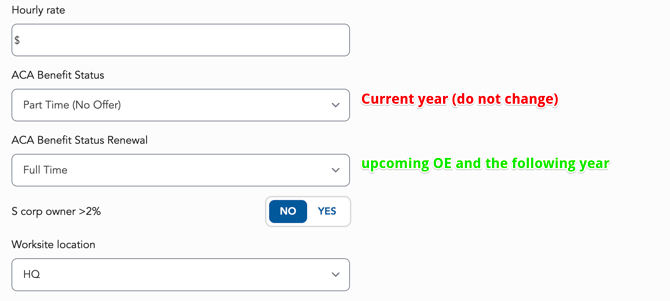
| ACA Benefit Status | The employee's eligibility for the current plan year. The payroll integration updates this field daily. | Do not change this field. Any edit will be overwritten by the next daily sync. |
| ACA Benefit Status Renewal | The employee's eligibility for the upcoming Open Enrollment and the next plan year. | Set this field manually. The integration does not use this field, so your value will stay in place. |
Example from the Employment Information page. This employee is Part Time (No Offer) for the current year and will be Full Time starting January 1:
Before you start: build your list
From your measurement period results, list every employee whose eligibility changes on January 1. For each, note:
- Full legal name, as it appears in your payroll system
- Whether they are gaining or losing eligibility
- Whether they already have a record in benefitbay (search for them by name)
Timing: complete all steps before your Open Enrollment period opens and before enrollment communications go out. Newly eligible employees who are not set up in time will not receive their invitation.
Step 1: Update employees who already exist in benefitbay
Covers employees losing eligibility, plus employees gaining eligibility who already have a benefitbay record.
- In benefitbay, open the employee's profile and go to the Employment Information page.
- Leave ACA Benefit Status exactly as it is.
- Set ACA Benefit Status Renewal to the employee's January 1 status. For example, select Full Time for an employee gaining an offer of coverage, or Part Time (No Offer) for an employee losing eligibility.
- Save the record.
- Repeat for each existing employee on your list.
Step 2: Create employees who are not yet in benefitbay
Covers employees gaining eligibility who were not benefit-eligible this year and were therefore never sent over by the integration.
- In benefitbay, add the employee manually. For step-by-step instructions, see How to Add an Employee in benefitbay.
- Enter identifying information exactly as it appears in your payroll system: legal first and last name, SSN, date of birth, home address, and hire date. The integration uses these details to match your manual record to payroll; a mismatch can create a duplicate or a sync error on January 1st.
- Set ACA Benefit Status (current year) to the employee's current status, for example Part Time (No Offer).
- Set ACA Benefit Status Renewal (next year) to the employee's January 1 status, for example Full Time.
- Save the record and repeat for each missing employee.
Step 3: Add or Remove Employees to your 2027 Open Enrollment
Employee will need to be added or removed from the 2027 OE period, see Adding Employees to an Enrollment Period.
- Every employee gaining eligibility should be added to be able to shop.
- Every employee losing eligibility should be removed.
Important: if you see a sync error in the upcoming feeds, contact benefitbay before dismissing it
We do not expect sync errors for employees you update or create in this process.
If an error appears under Employee Data Sync for one of these employees, do not click Ignore. Contact your benefitbay support contact with the employee name and error text. Our engineering team will review the record and provide a resolution.
Need help?
If you have many affected employees or are unsure how to classify someone, contact your benefitbay CSM contact before Open Enrollment opens, with your list of affected employees ready.