![branded_update_bb_logo_r_230728-2.png]](https://knowledge.benefitbay.com/hs-fs/hubfs/branded_update_bb_logo_r_230728-2.png?height=40&name=branded_update_bb_logo_r_230728-2.png)
If you have a Qualifying Life Event (QLE), you may need to add/remove dependents from your coverage, report a new address or report a new marriage. To learn more about what is considered a QLE, click here.
Documentation May Be Required
Some Qualifying Life Events require additional documentation. If yours does, you’ll need to upload or provide verifying information before you can proceed with your QLE request.
⚠️ Please note: Approval is at your carrier’s discretion. Submitting a request does not guarantee it will be accepted.
Requesting coverage change
To request a change to your medical coverage, log in to your benefitbay account and follow the following steps:
Step 1: Go to the Enrollment tab.
Navigate to your Enrollment tab and click “Submit a qualifying life event.” 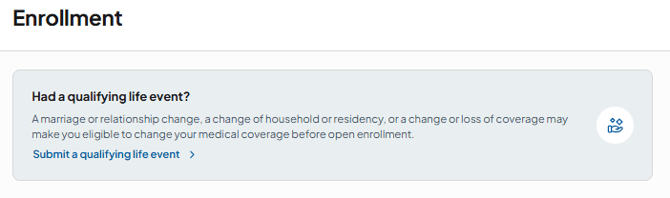
Step 2: Start a new request.
Click the blue “Start new request” button in the top right corner.
.jpg?width=670&height=283&name=e%20(1).jpg)
Step 3: Choose your event category.
Select the category that matches the event you need to request a change for.
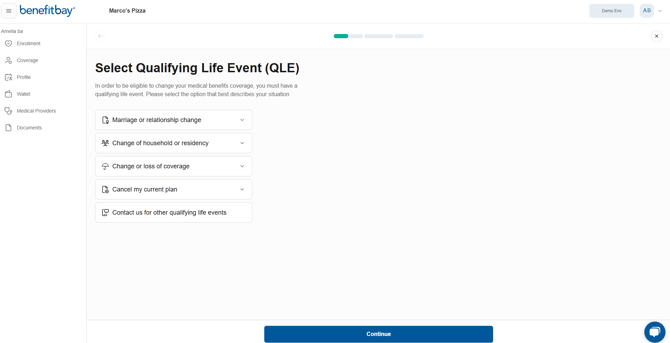
Step 4: Select your specific event.
Use the drop-down menu within your category to find the event that fits your change. Then click the blue “Continue” button at the bottom of the page.
.jpg?width=670&height=348&name=Untitled%20design%20(1).jpg)
Step 5: Complete and submit your request.
Fill in all text fields, then click the blue “Confirm changes and submit request” button at the bottom of the screen.
📎 Watch for document requests. You may be asked to upload proof of your Qualifying Life Event. Our enrollment team cannot submit your request to the carrier without this verifying information, so providing everything up front helps us move your request along quickly.
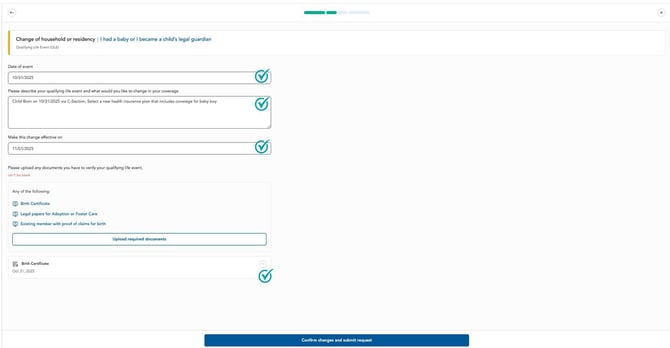
Great job! Your request has been submitted!
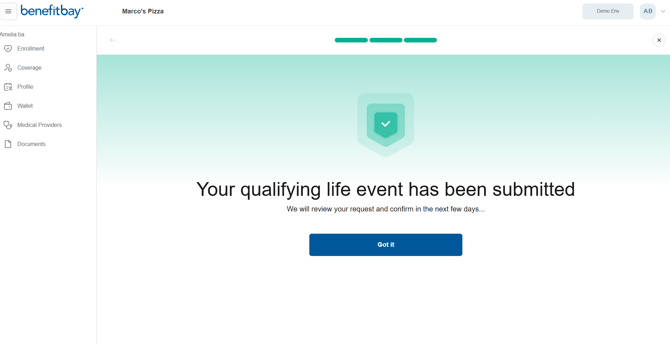
Monitoring coverage change requests
After submitting a request, please monitor your benefitbay account and your email to respond to requests from your carrier for additional information.
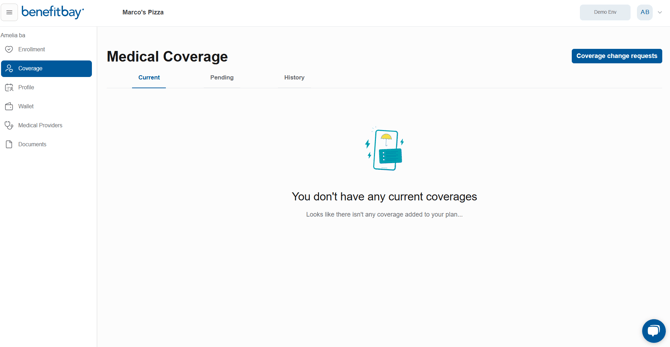
Step 1: Open your requests.
Log in to your benefitbay account, go to the Coverage tab, and click the blue “Coverage change requests” button in the top right corner.
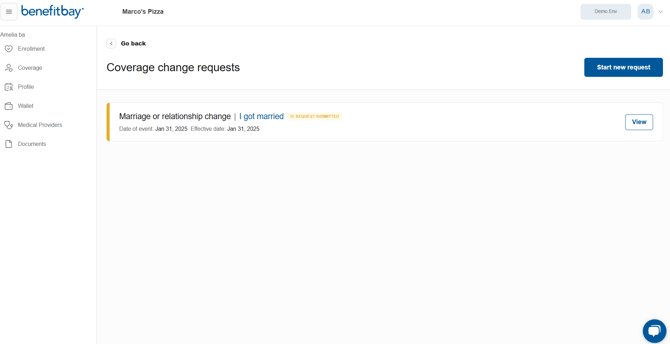
Step 2: View a request.
Click the white “View” button on the request you’d like to review.
Step 3: Review details and upload documents.
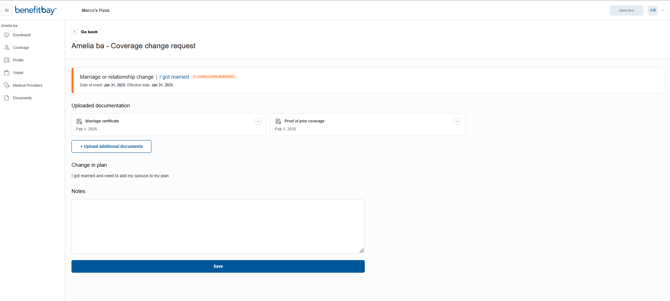
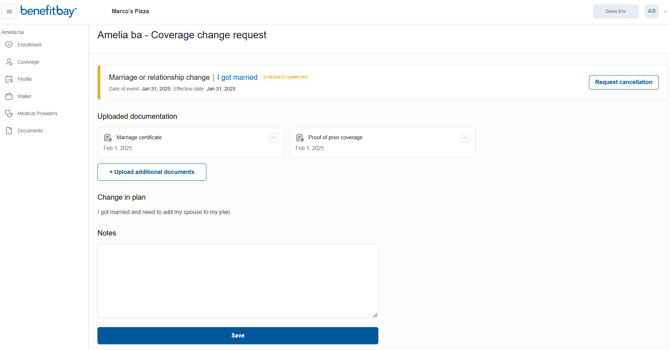
Here you’ll see the full details of your request, including any notes from our enrollment team. To add documentation, click the white “+ Upload additional documents” button in the middle of the screen.
Cancelling your coverage change request
If your circumstances change after submitting a request, you can choose to cancel it.
Step 1: Open your requests.
Log in to your benefitbay account, go to the Coverage tab, and click the blue “Coverage change requests” button in the top right corner.
Step 2: Select the request.
Click the white “View” button on the request you’d like to cancel.
Step 3: Request cancellation.
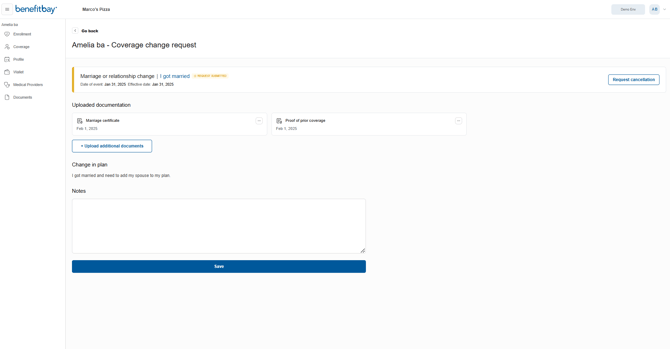
Click the white “Request cancellation” button in the top right corner.
⚠️ Don’t see this option? Your carrier may have already processed your request. Please contact support@benefitbay.com to be connected with our team.
Step 4: Confirm.
When prompted, select “OK.” Your request status will change to CANCELLATION REQUESTED.